
Add a church glossary and Bible versions
Save church names and terms in Glossary, set Translate To for fixed translations, and choose a Bible version for every language before Sunday.
SermonLM Team · · 6 min read
Last updated 2026-11-25. Steps checked in the help pages on 2026-11-25.
On Wednesday night, the church admin gathers Sunday's names, ministry terms, and Bible choices before rehearsal. SermonLM is live sermon translation for multilingual churches. Save church words in Glossary, and set Translate To when you want fixed wording. Then pick each language's version on Bible Versions.
Congregants follow along on their own phones in their own language. Read how SermonLM connects your sound desk to guest phones. You can also keep the Glossary and Bible help steps open while setting up your account.
Add a church word in Glossary
Use Add Term inside Glossary whenever you want to store a single name or ministry term.
- In the sidebar under Organization, click Glossary to open Terminology Glossary.
- Click Add Term to bring up the Add New Term form.
- Pick Spoken Language so it matches the language the pastor speaks.
- Type the word in Term, such as a church name, a person's name, or a Hebrew word like Hesed.
- Pick a target language under Translate To only if you want a fixed translation. The Translation box will appear.
- Type the target wording in Translation when you picked a target language.
- Click Add Term. You will see Term added, and your list updates.
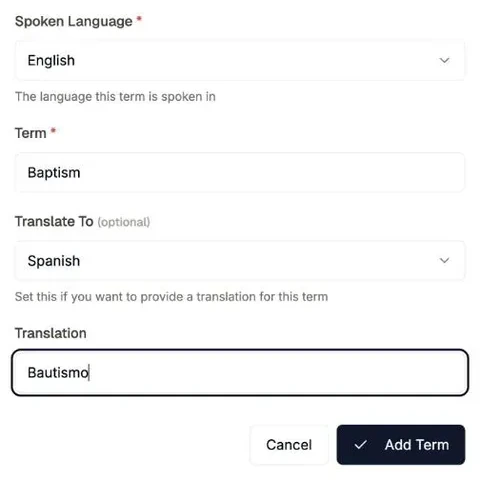
Keep Translate To set to No translation when you only want help hearing and spelling the word. Those entries display as Transcription only. Pick both Translate To and Translation whenever you want to guide the translated wording too.
SermonLM matches source words based on the sermon's spoken language. Always verify Spoken Language even when a default is already selected.
To locate a saved word later, type in Search terms... or adjust the All languages filter. Open the three-dot menu beside an entry to Edit or Delete it, and click Update to save changes.
Bring in a word list with Bulk Import
When your church already keeps a written list of names and terms, paste them together using Bulk Import.
- Click Bulk Import to open Bulk Import Terms.
- Select Spoken Language for every line in your list.
- Select Translate To if your list pairs words with translations.
- Paste one entry per line. Write term -> translation when setting a fixed translation.
- Click Import and read the summary showing imported and skipped entries.
- Scan the updated list to confirm each entry looks right.
Add Term never overwrites a word you already saved. If the word exists, Term already exists appears, and you change it with Edit.
Import works differently. It can overwrite an existing translation when the spoken language and target language match. A pasted line without a translation leaves the saved translation untouched.
If some words need no fixed translation, import them in a separate batch with Translate To set to No translation. Hold onto a local copy of your list until you finish checking the entries.
Pick a Bible version for each language
Choose your church's preferred Bible edition per language on the Bible Versions screen.
- Under Organization, click Bible to open Bible Versions.
- Locate a language your church uses. Underneath it sits the saved Bible name and code, or Automatic (no preference).
- Open the version menu for that language.
- Pick your church's preferred Bible version. It saves immediately.
- Confirm Saved appears before navigating away.
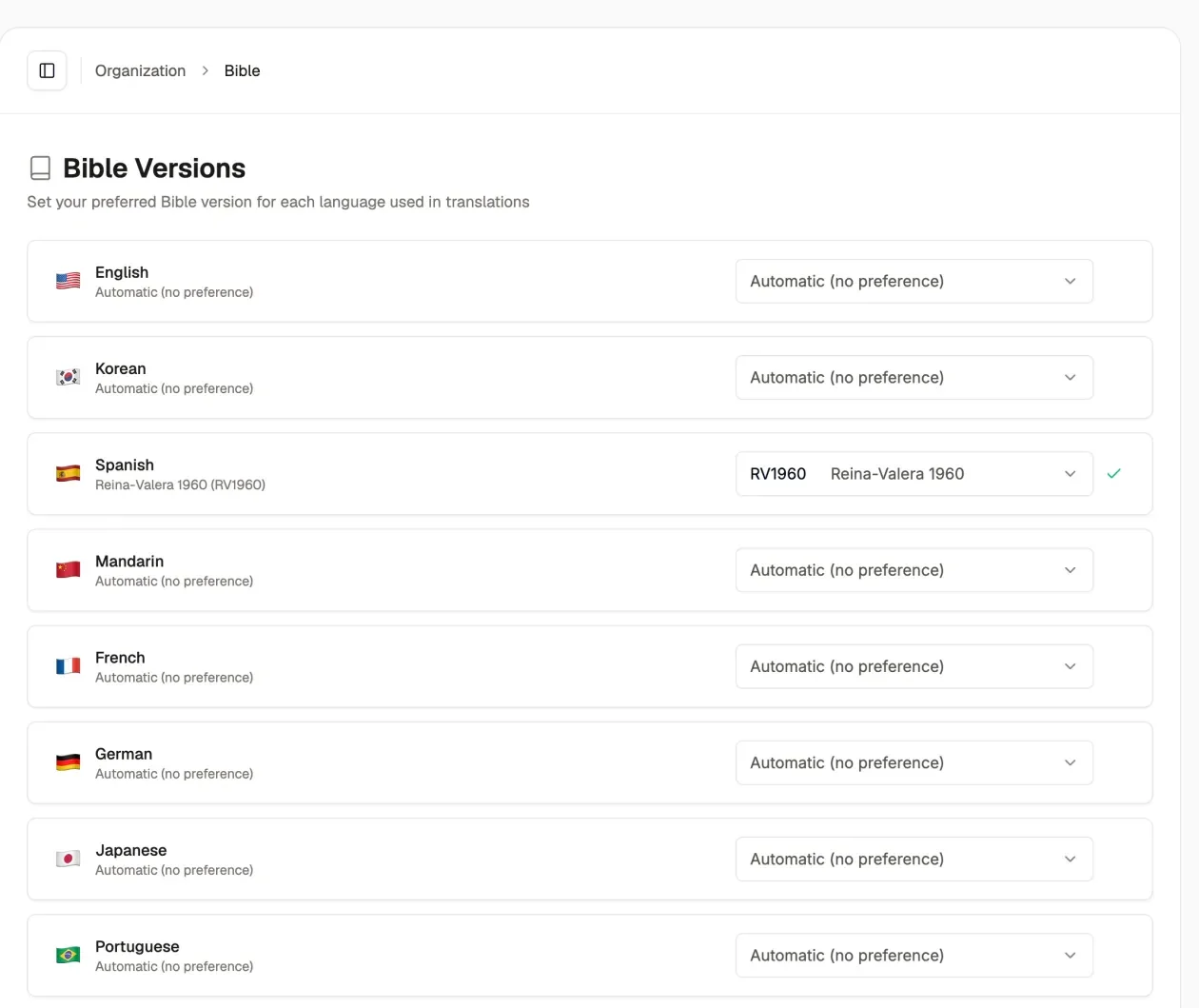
When SermonLM recognizes a verse the pastor quotes, it references a real Bible text while keeping the pastor's own words. Verse matching works today for English, Spanish, Korean, and several other languages.
Each language stores its own setting. Picking Automatic (no preference) removes the saved preference for that language.
Review the Bible setting for one sermon
You can override a language's Bible choice for a single service inside New Livestream.
- Open New Livestream.
- Pick Sermon language.
- Pick your Translation language(s). One card appears for each guest language.
- Check the Bible field inside each card.
- Select another version if this service calls for a different edition.
Changing Bible on a sermon card applies to that session alone. Your church default on Bible Versions stays untouched.
If a card shows none available, either no edition exists for that language or the list is still loading. Wait a moment, then check Bible Versions under Bible in the sidebar. The guest language stays active in your sermon setup either way.
Edit a wrong word during the sermon
If a name or term comes through wrong while the pastor speaks, fix it in the Transcript tab.
- Open the Transcript tab in the live studio.
- Click the line you want to fix. Its words load into the edit box along the bottom.
- Update the wording in that box.
- Press the arrow button, Change. The line updates and SermonLM generates its translations again.
If you need to undo an edit, select Revert to Original.
Before Sunday arrives, rehearse your glossary and Bible choices using our Playback walkthrough for recorded sermons. Playback runs on a computer in Chrome or Edge. If you have a speaker and helper ready, follow our live Sunday rehearsal checklist.
Limits to plan around
Keep these boundaries in mind as you prepare for Sunday.
- Setting Translate To to No translation helps with hearing and spelling only, not the translated wording.
- Languages without an available Bible edition do not show a card on Bible Versions.
- Review Bible quotations during a sermon even after picking a preferred edition.
- Editing a line in Transcript updates the text, yet it cannot undo audio guests already heard.
- SermonLM handles spoken words: sermons, prayers, Scripture readings, and announcements. It does not translate hymns or worship music.
- The service requires an internet connection and does not run offline.
Questions churches ask
Here are four common questions from church staff setting up words and Bible choices.
Do glossary words translate on their own if Translate To is blank?
No. Leaving Translate To on No translation helps SermonLM hear and spell the spoken word. Set both Translate To and Translation to guide the translated wording.
Does picking a Bible on New Livestream overwrite our church default?
No. That change applies to that single sermon. Your saved selection on Bible Versions remains unchanged.
What happens when Bulk Import includes a word already in Glossary?
When the spoken and target languages match, Import can overwrite the saved translation. Lines without a translation keep the saved translation as is.
How can we check our church words before Sunday morning?
Run Playback in the studio with a past sermon recording, such as a video from your church's YouTube channel. The Playback guide linked above walks through every step.
Next step: create your SermonLM account and add your church's first glossary words before Sunday. You can also review current SermonLM plans before your first service.